Data Point Consolidation
To provide full transparency and flexibility in group reporting, the platform allows Parent Company users to consolidate data points directly within the data entry interface. This ensures that you can review, trigger, and adjust consolidated values before they appear in the final report.
1. Requirement: Setting the Reporting Scope
Section titled “1. Requirement: Setting the Reporting Scope”To enable the consolidation features for numeric values, the reporting scope must be correctly defined in the basis of preparation.
To ensure the “Auto-consolidate values” functionality is available for numeric data points, the reporting scope must be correctly defined in the basis of preparation.
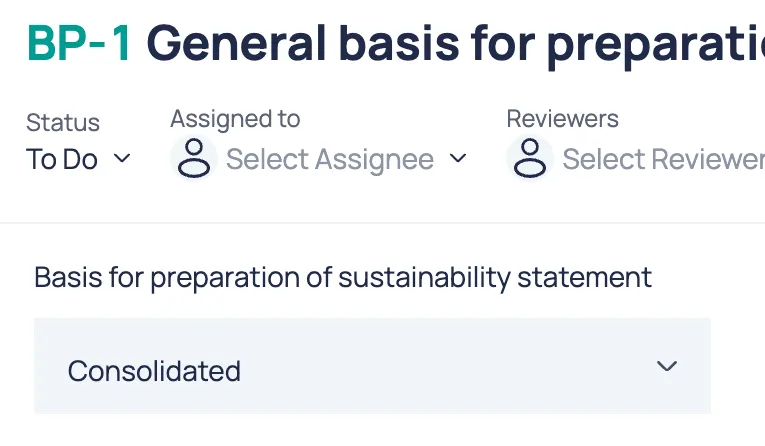
- In ESRS: Under BP-1 (General basis for preparation), the option “Consolidated” must be selected for the “Basis for preparation of sustainability statement.”
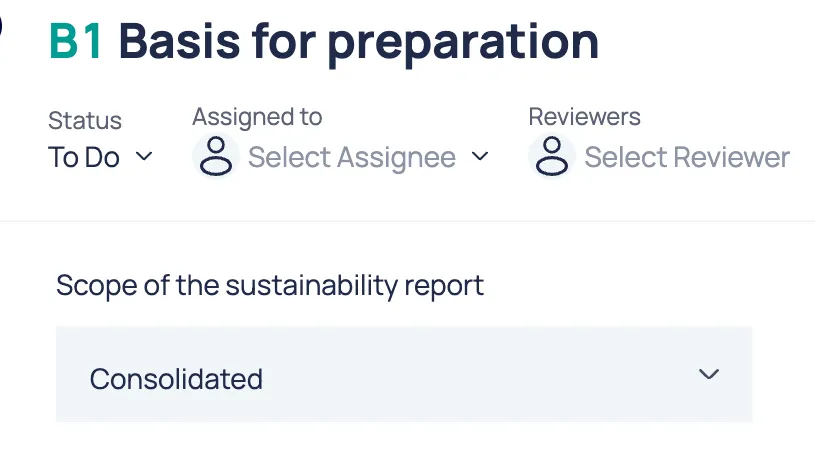
- In VSME: Under B1 (Basis for preparation), the option “Consolidated” must be selected for the “Scope of the sustainability report.”
2. How Auto-Consolidation Works
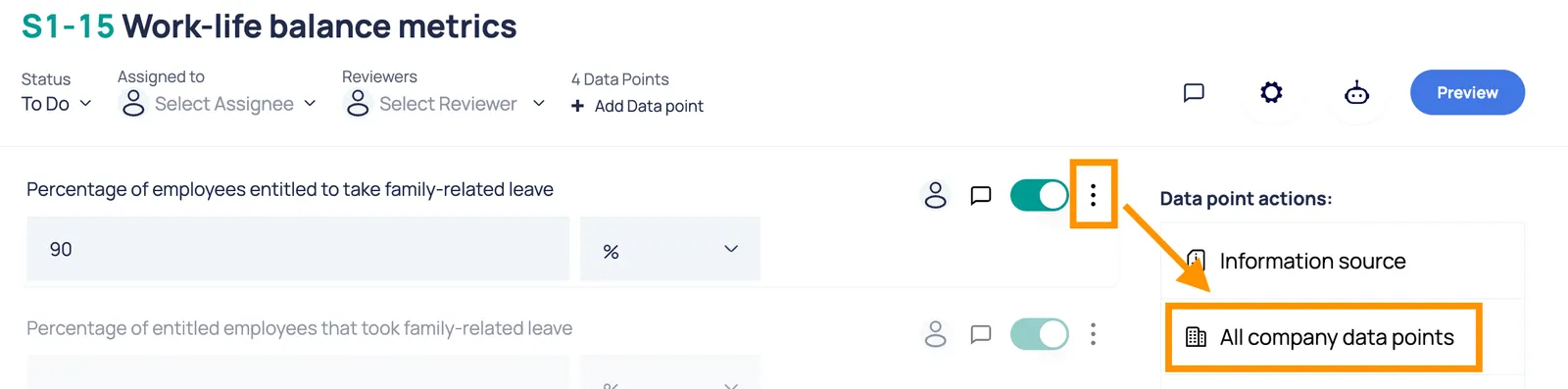
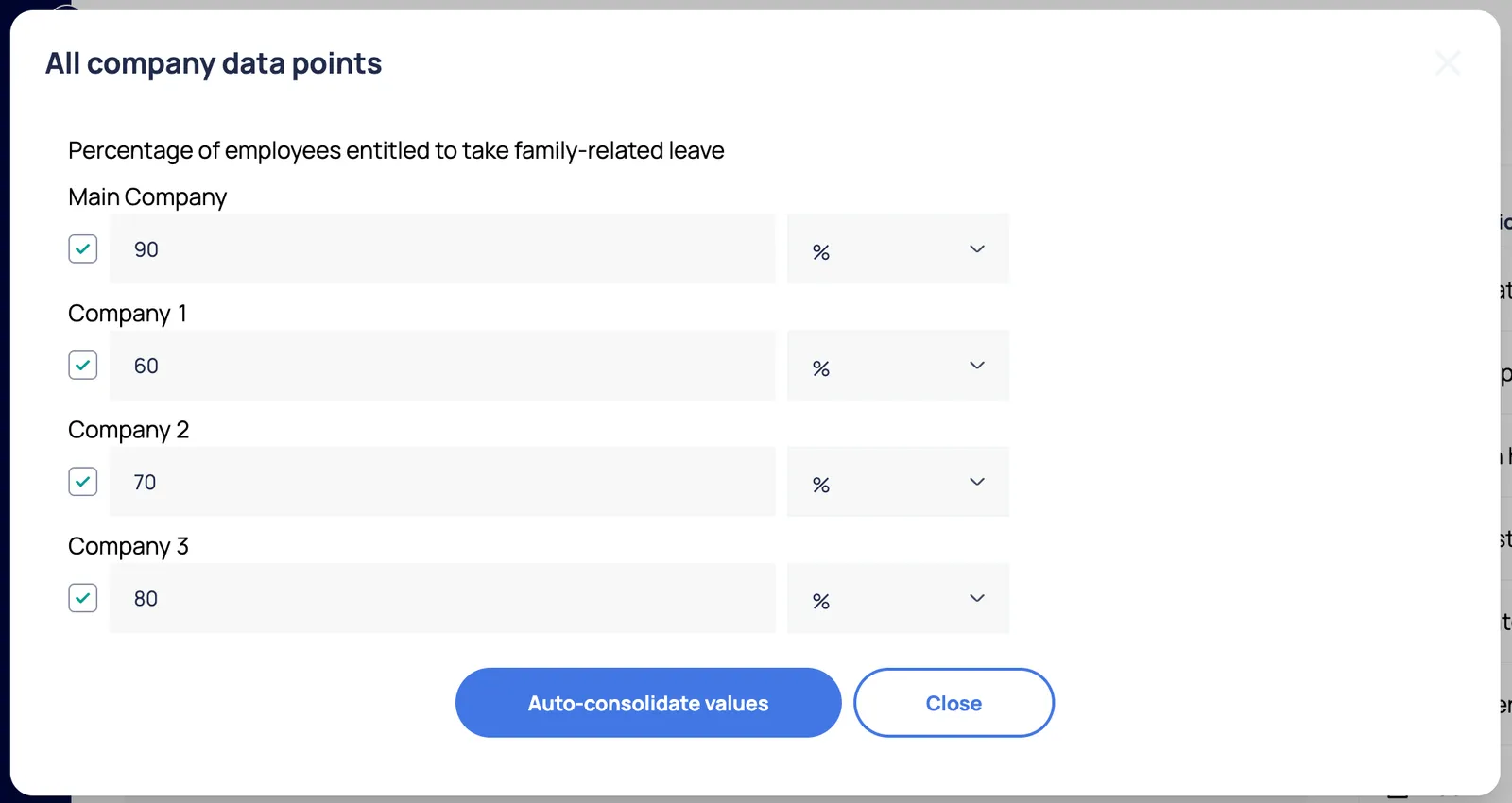
Section titled “2. How Auto-Consolidation Works”Once the reporting scope is set to consolidated, the “Auto-consolidate values” action will appear within the “All company data points” modal for all applicable numeric fields.
Calculation Logic
Section titled “Calculation Logic”The platform applies different mathematical rules depending on the type of data point:
- Numeric/Absolute Values: The system calculates a Sum of the parent and all selected child companies (e.g., Total Energy Consumption).
- Percentages, Intensities, or Averages: The system calculates an Average across the parent and selected child companies (e.g., Accident Rates or Employee Turnover %).
3. Triggering Consolidation
Section titled “3. Triggering Consolidation”To populate a data point with group data:
- Open the “All company data points” modal next to the input field.
- Review the list of entities, which includes the Parent Company and all Subsidiaries you have access to.
- Selective Calculation: Use the checkboxes next to each company name to choose exactly which subsidiaries should be included in the calculation. This allows you to exclude entities that may have incomplete data or are outside a specific reporting scope.
- Click the “Auto-consolidate values” button.
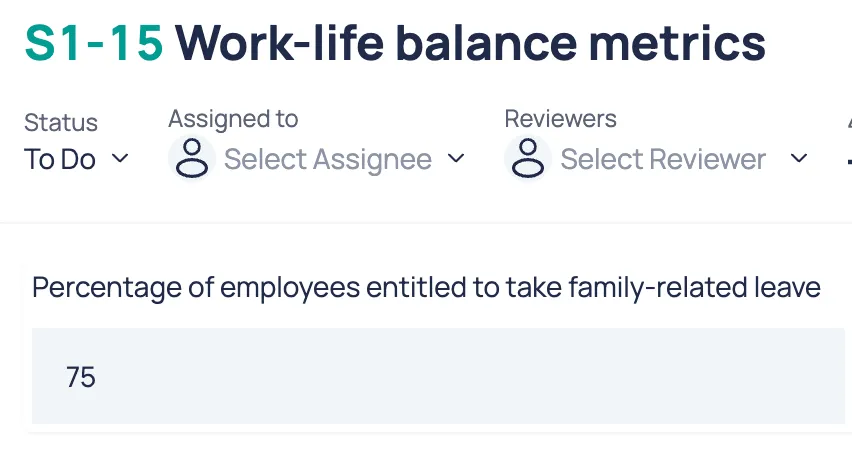
- The calculated total will automatically fill the Parent Company’s data field based on your selection.
4. Manual Override
Section titled “4. Manual Override”The auto-consolidated value is a starting point, not a limit.
- Edit Manually: You can click directly into the Parent Company field and change the value after it has been auto-consolidated.
- Final Report: The manually adjusted value is what is saved and displayed in the final report.