ESG report design customization
Table of Contents
Section titled “Table of Contents”- Overview
- Custom Pages and Options
- Pillar Section Cover Pages
- Disclosure Requirement Layouts
- Reordering Data Points (Drag-and-Drop)
- Renaming and Managing Data Point Titles
- Live Preview Options
Overview
Section titled “Overview”We have introduced a simple customization feature for ESG report design. These tools allow you to deviate from rigid templates and design a professional, stakeholder-ready sustainability report directly within the platform.
Custom Pages and Options
Section titled “Custom Pages and Options”Beyond standard templates, users can insert completely bespoke pages anywhere within the document structure to add context, letters to stakeholders, or section breaks.
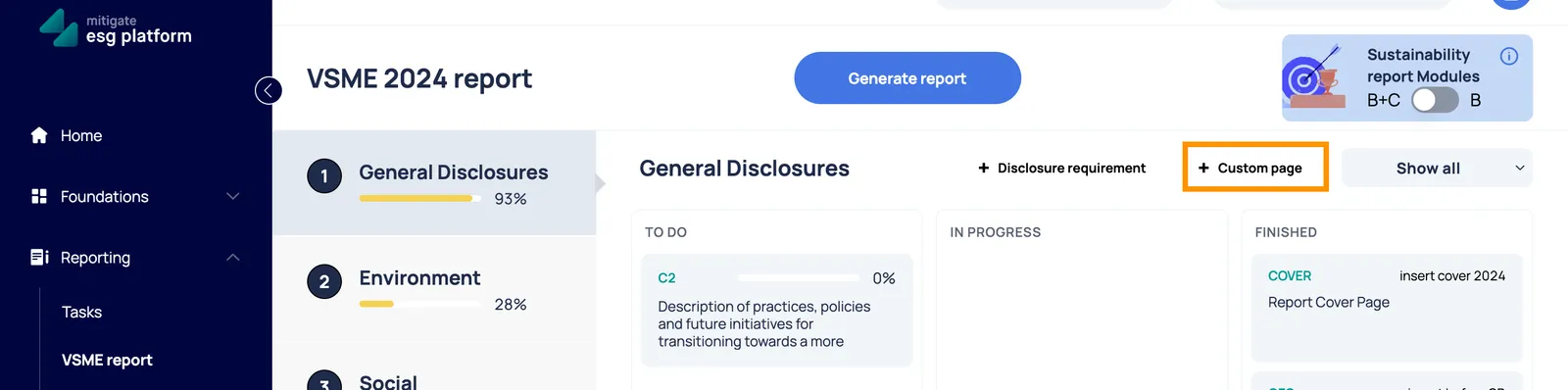
When adding or configuring a custom page, you have access to the following design configurations:
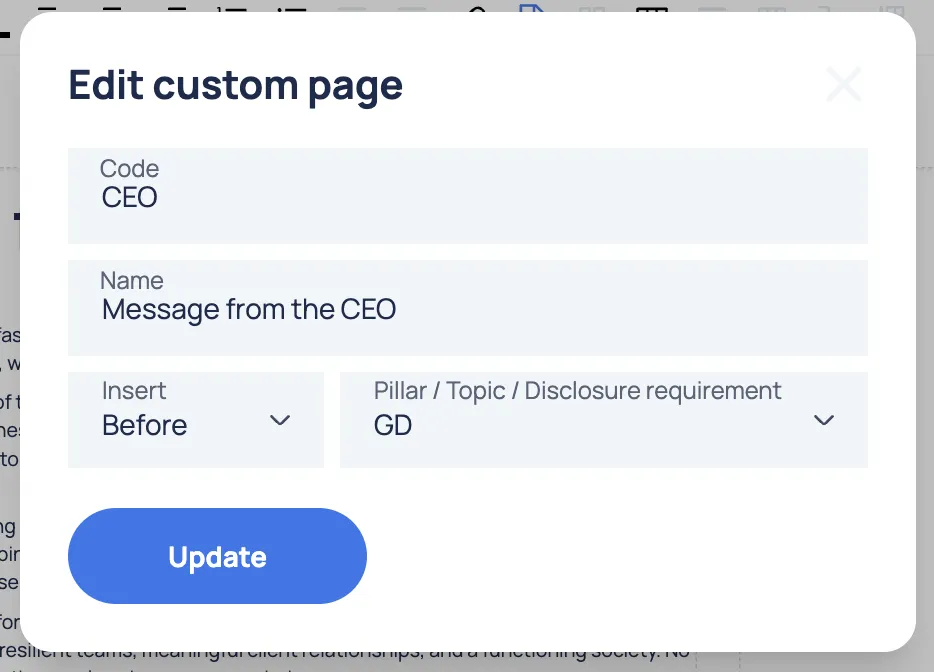
- Placement Options (Insert Before/After): Precisely position your custom page by selecting whether it should appear immediately Before or After any pre-existing disclosure requirement or chapter.
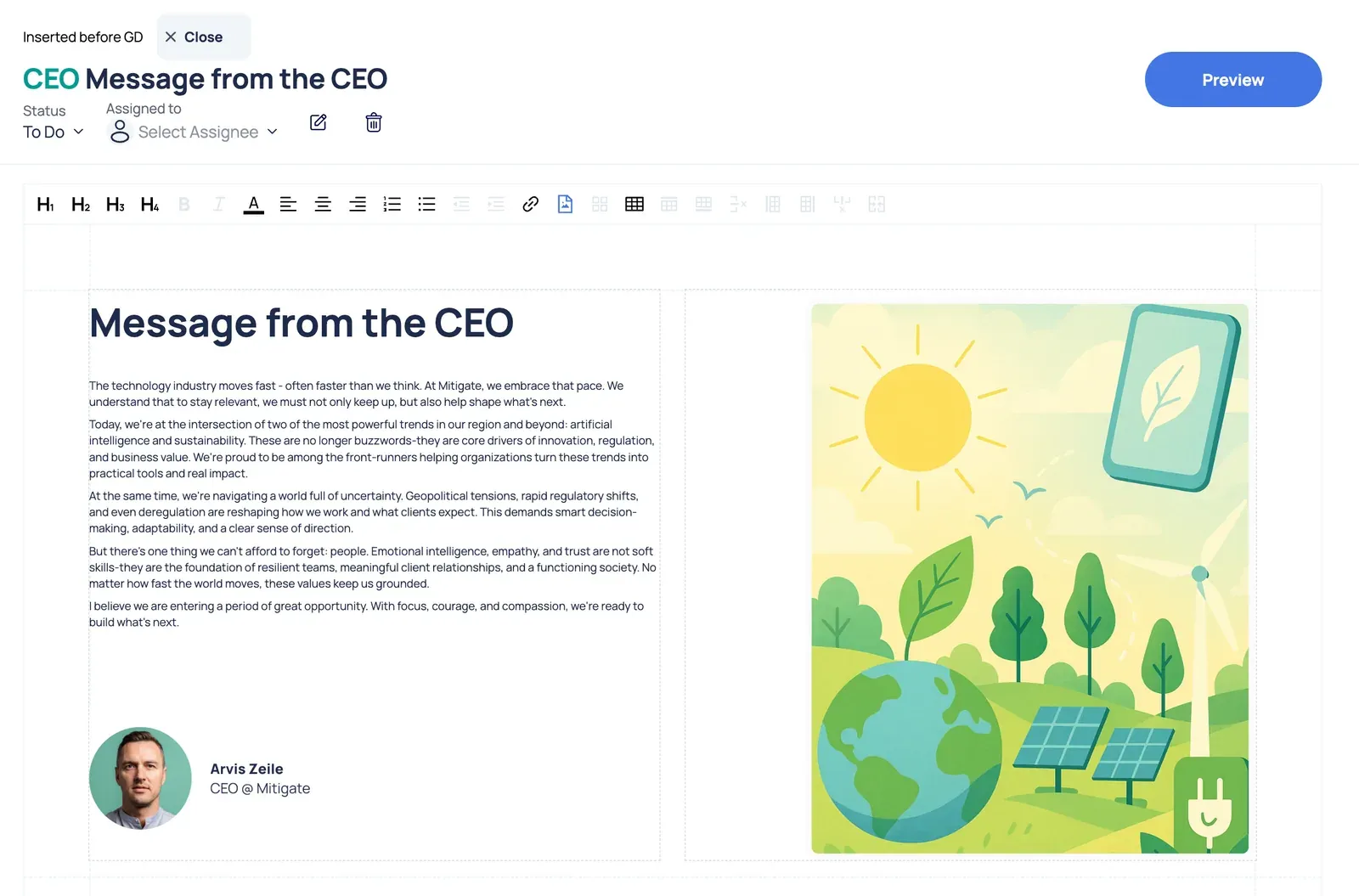
- Background Customization: Upload a custom full-page background image (e.g., corporate branding, sustainability photography) or select solid brand colors to serve as the canvas for your page.
- Rich Text Editing: Insert and format custom body text, headers, and bullet points using our inline text editor.
- Multi-Column Grid System: Break away from single-column text blocks. Choose between multi-column layouts (e.g., two, three, or four columns) to balance text and space effectively.
- Image Insertion: Inline media blocks allow you to upload graphics, signatures, charts, or regulatory badges directly into specific text columns.
- Add a custom cover page and a cover page for each pillar section
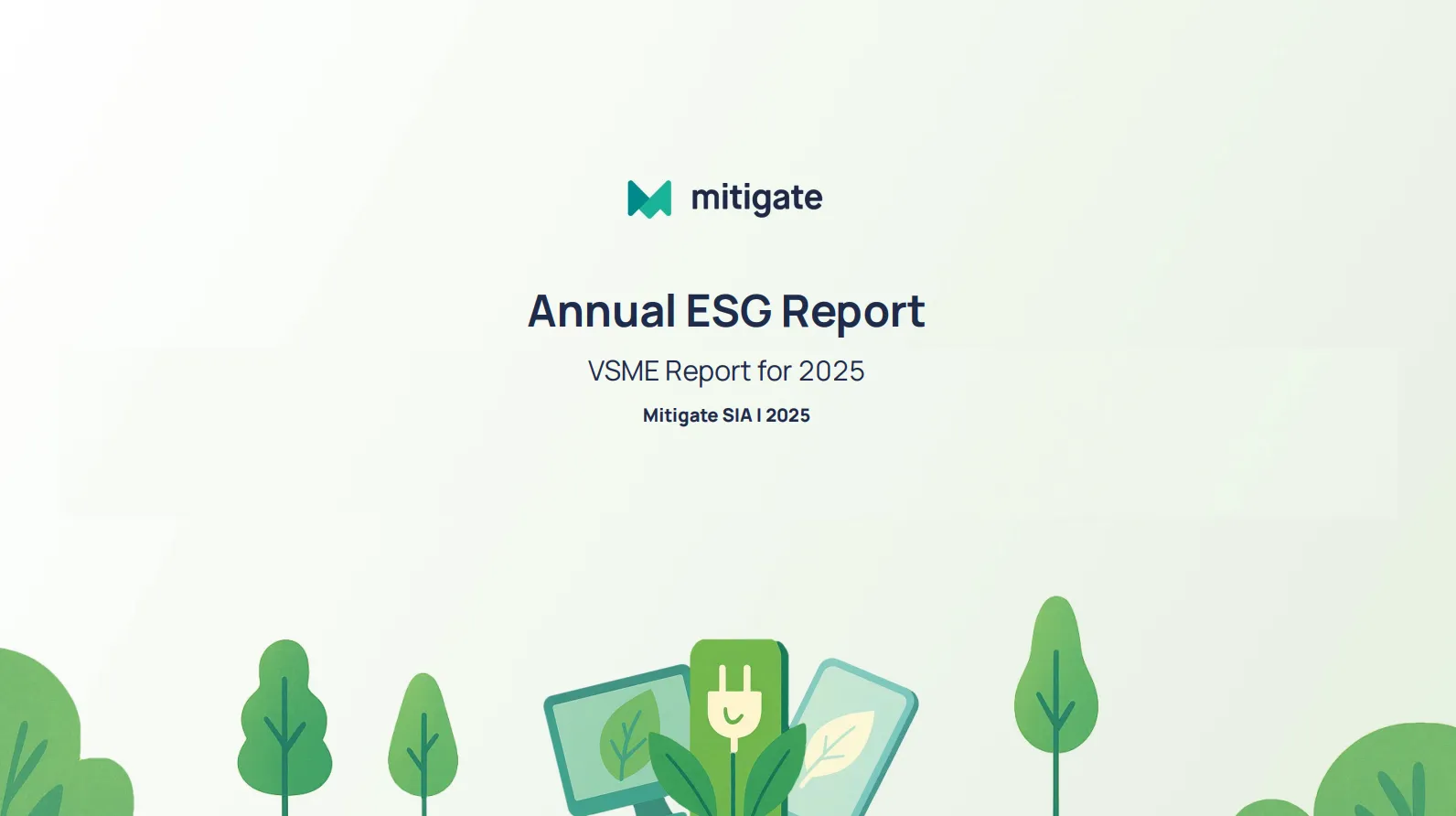
Users can add a custom cover page by entering the desired text and uploading a background image:

Pillar Section Cover Pages
Section titled “Pillar Section Cover Pages”Users can add a custom cover page for the entire report, as well as distinct cover pages separating each major ESG pillar section (Environmental, Social, Governance).
To customize a cover page, navigate to the section settings where you can enter your desired introductory text and upload a dedicated background image.
Disclosure Requirement Layouts
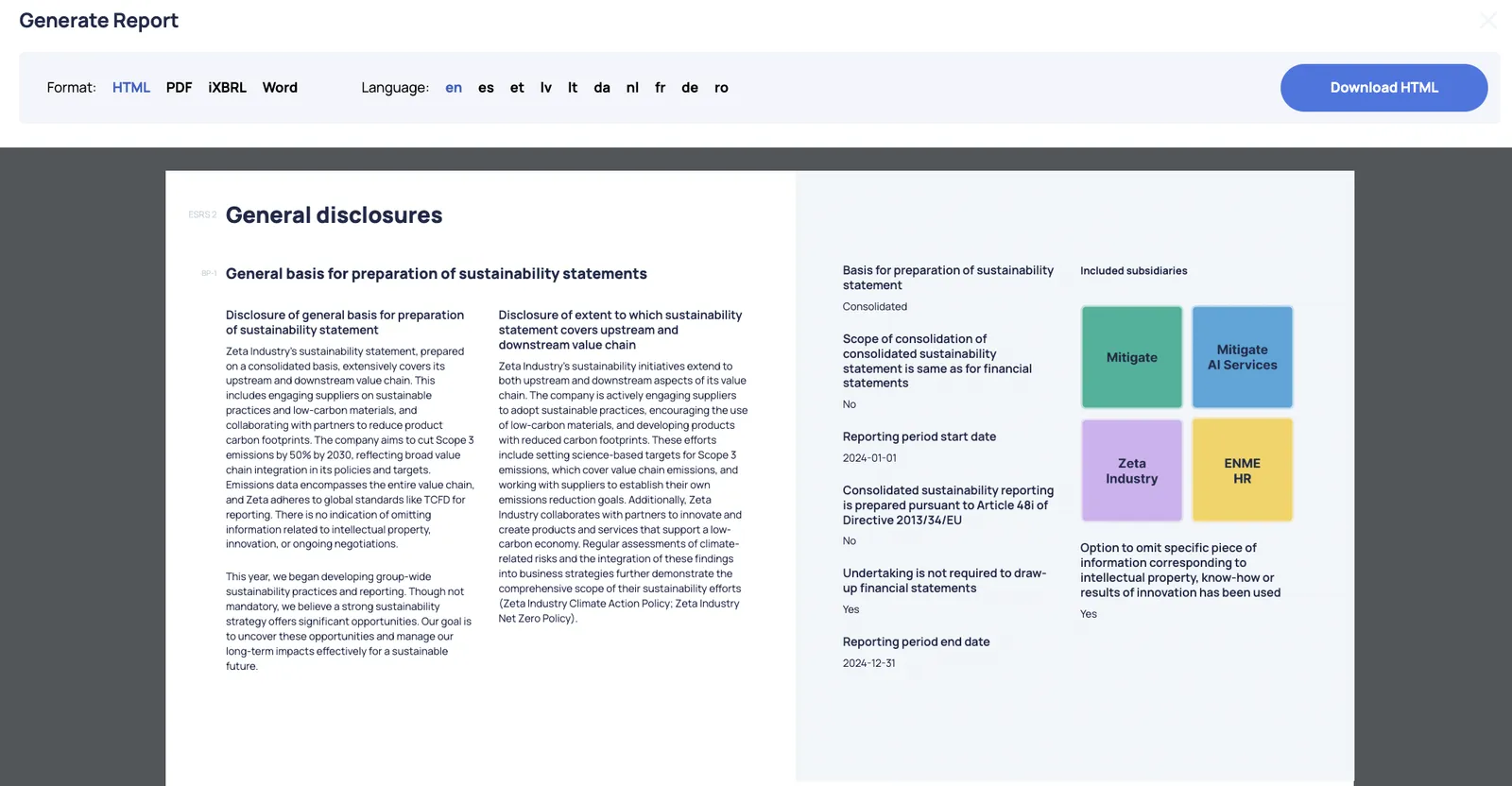
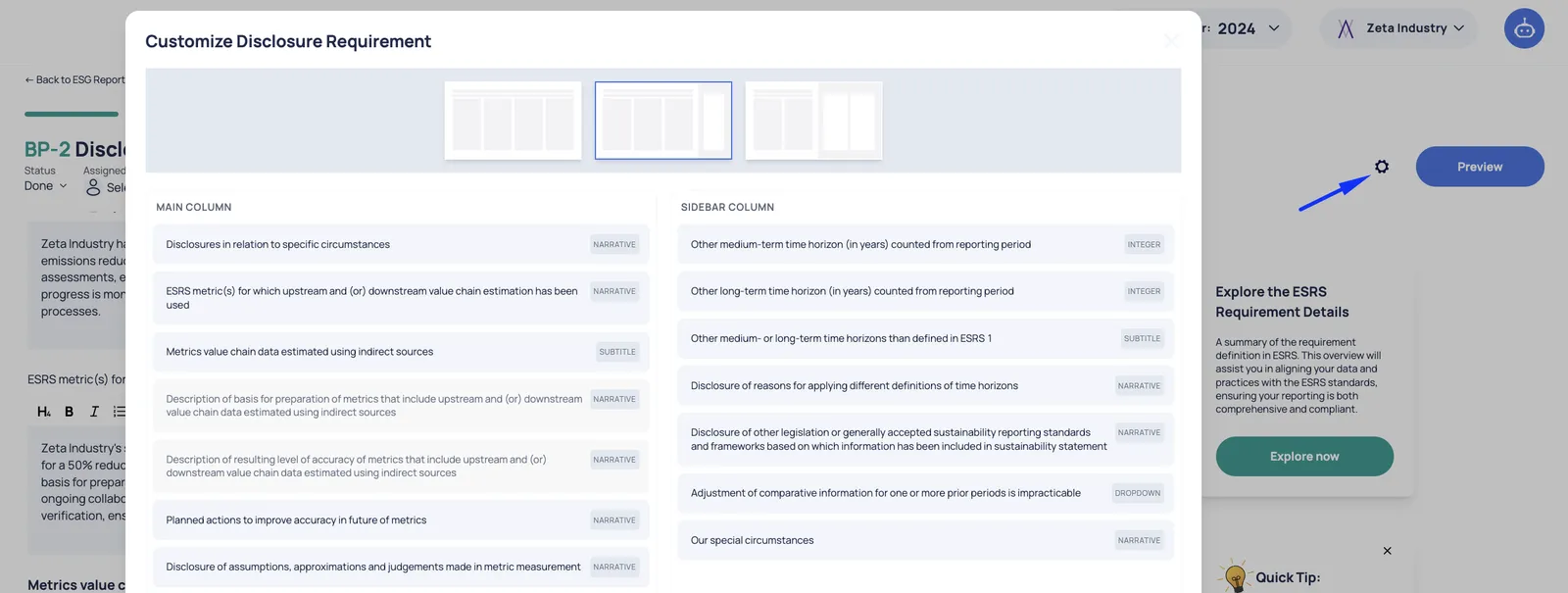
Section titled “Disclosure Requirement Layouts”Users can customize the display of a specific disclosure requirement in the final ESG report by choosing from various structure layouts.
Available structural grid templates include:
- Four-column grid for high-density metric summaries.
- Three columns with a dedicated sidebar for notes or definitions.
- Two-section split layout - ideal for displaying core narrative text on one side and supporting visual content, charts, or images on the other.

Reordering Data Points (Drag-and-Drop)
Section titled “Reordering Data Points (Drag-and-Drop)”You do not have to stick to the default framework sequence. With built-in drag-and-drop functionality, you can effortlessly change the display order of individual data points within an ESG report module to improve narrative flow.
Renaming and Managing Data Point Titles
Section titled “Renaming and Managing Data Point Titles”For the platform users’ convenience, internal mapping remains organized even when external wording changes:
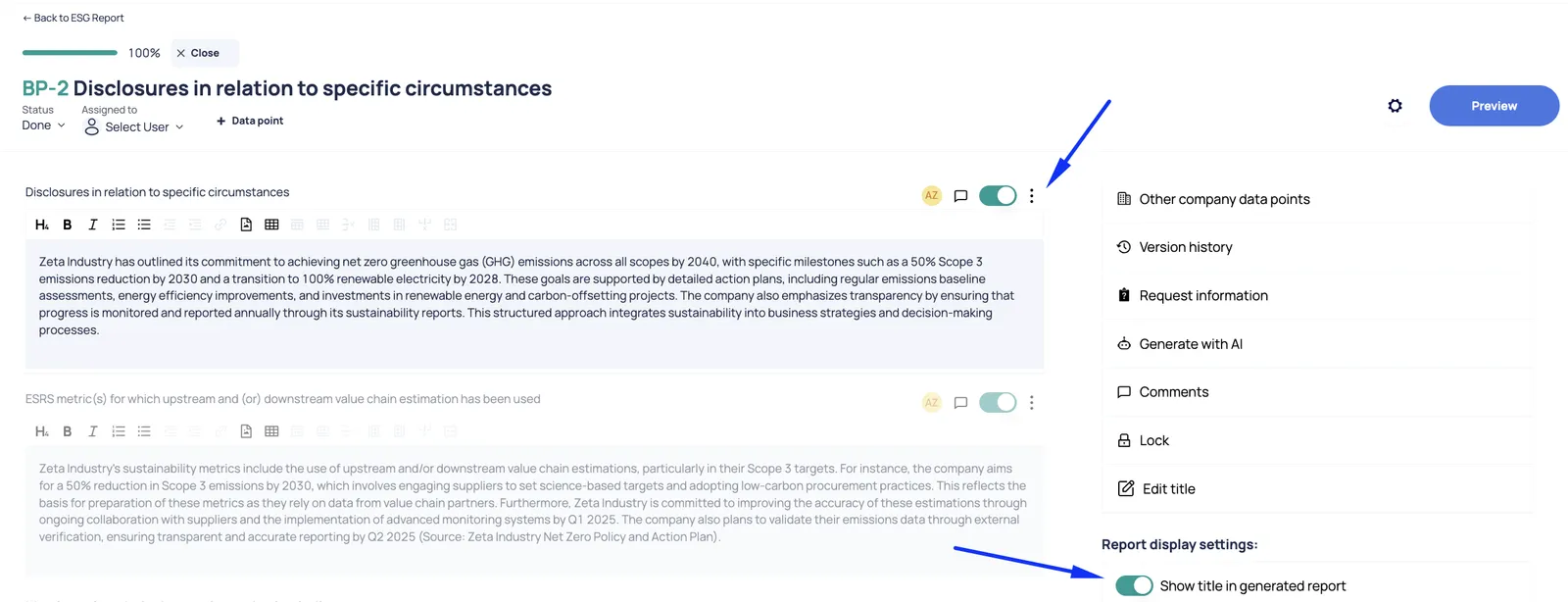
- Name Tracking: Both the original framework name and your newly assigned custom data point names are displayed side-by-side within the internal disclosure workspace.
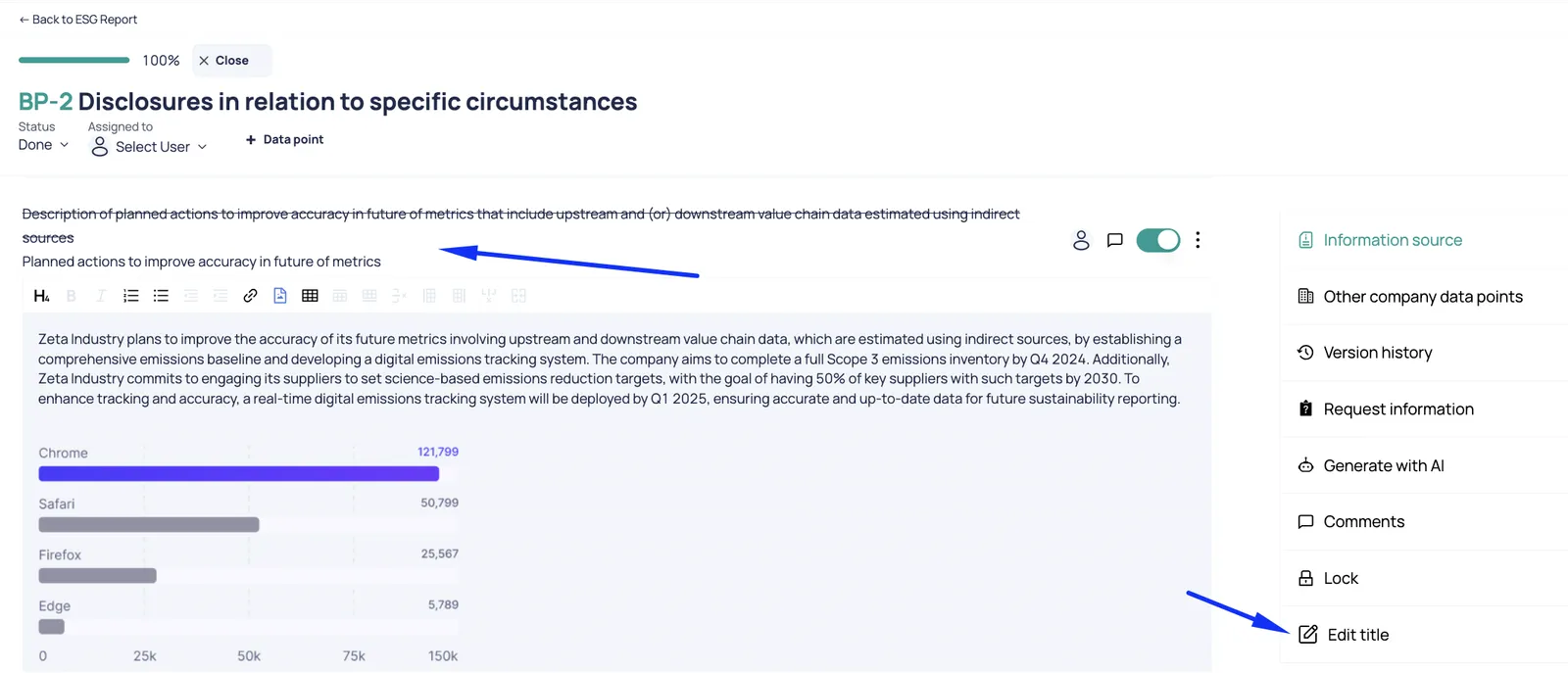
- Toggle Visibility: If you want a cleaner look, users can choose to exclude the data point name entirely from the final generated report display, showing only the raw values or narrative blocks.
Live Preview Options
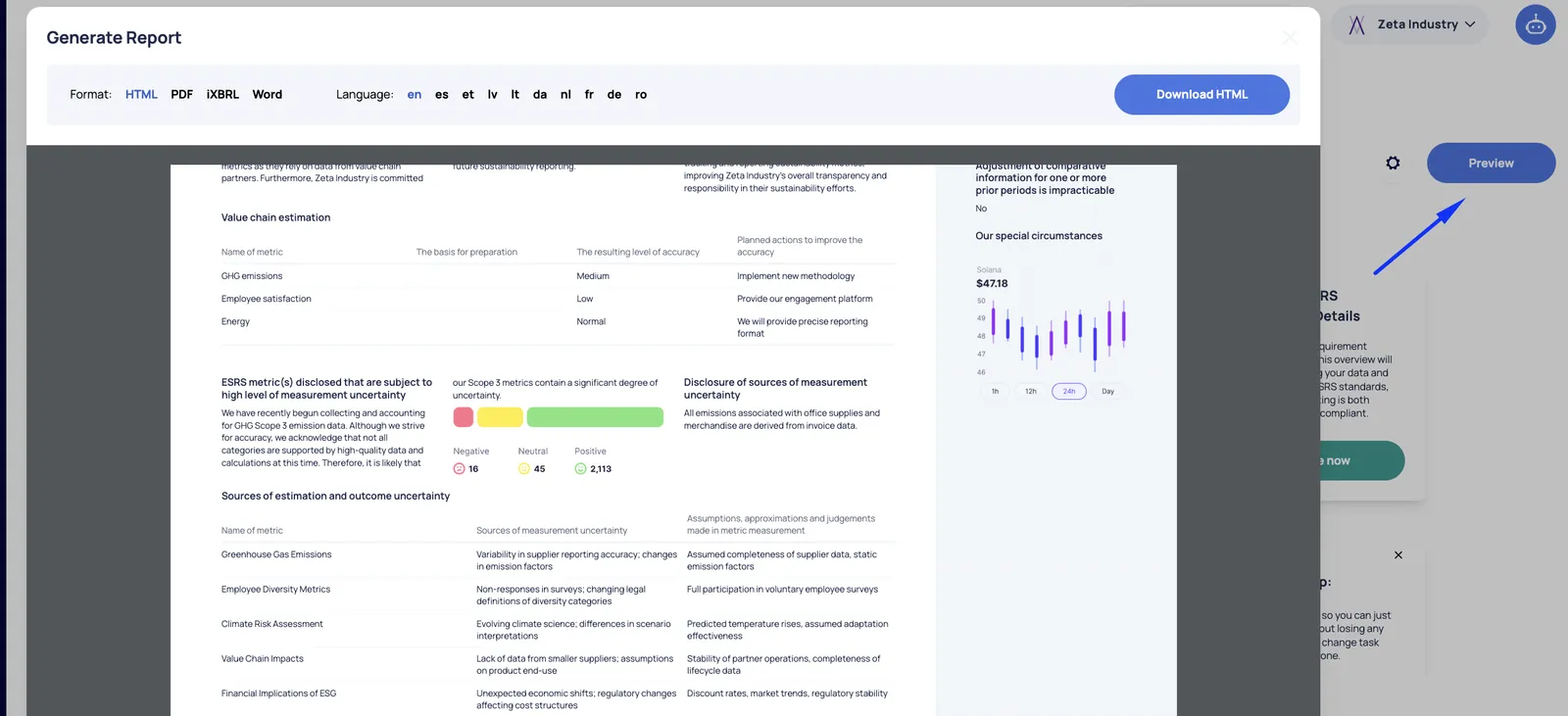
Section titled “Live Preview Options”To check your design formatting before exporting the entire package, use the Preview button located on any specific disclosure requirement page. This gives you an instant snapshot of how your text layouts, columns, and custom styling will look to an auditor or stakeholder.